sales06@switek.biz

+86 186 5927 5869

Shopping

Subscrib to Us
sales06@switek.biz
+86 186 5927 5869
Shopping
Subscrib to Us

Keywords:IML Robot; IML Robot Operating; In Mold Labeling Robotics
In our daily use of an IML robot, it's a good habit to backup the program after the parameters setting in case that there's a wrong operating or setting in the future. In this chapter we'll discuss how to export the program of the IML robot to a USB and how to reload a program from the USB key.
The following requirements must be met when using PENDANT to download the program:
First of all, you need to create 4 new folders in the USB root directory:
[penupdate], [pen_msg], [controllerupdate], [NCP]
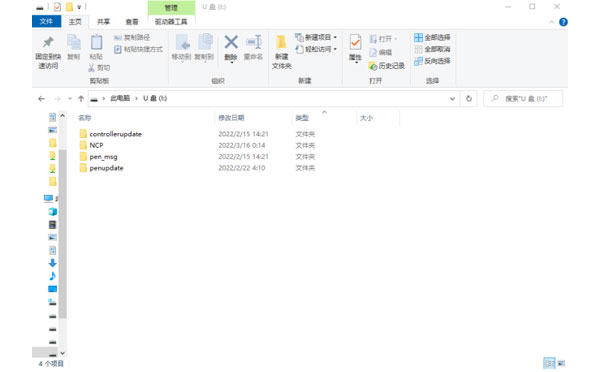
Place the downloaded file inside the corresponding folder, see the table below:
A List of Corresponding Files
| Folder on the left | File on the right | Illustrate | |
|---|---|---|---|
| [penupdate] | pne_set | pendant setup | the reboot takes effect |
| pendant-gui | Qt linux executable file | ||
| pen_msg | all_msg.txt | Pendant Textual information | |
| Other msg... | Pendant Textual information | ||
| [controllerupdate] | TRC1000.dsb | Controller action program | |
| TRC1000.dop | Controller initialization, setup | ||
| motc.dat | Motion control programs | ||
| machine01 | Mechanical parameter program 01 | ||
| ... | ... | ||
| machine32 | Mechanical parameter program 32 | ||
| [NCP] | NCP01.NCP | NCP File | Compiles to take effect |
| ... | |||
| NCP99.NCP | NCP File | ||
Insert the USB into the USB port of the handset, and it is recommended to choose a regular brand of USB that has not been specially handled.
Tap the [File Management] icon at the top of the screen  , select [Import from USB].
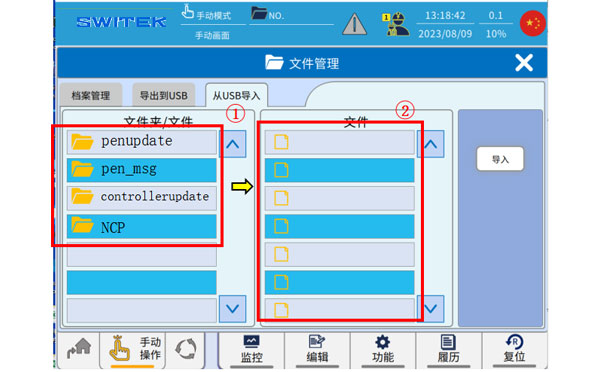
When a file is recognized in the USB, [Import from USB] displays the folder prepared in advance on the USB flash drive.
Click to select the folder in (2) to display the subfiles in the folder in (1), select the subfiles you want to import, and click Import. (If you only select (2) and click[Import], all the contents of the folder will be downloaded).
After the download is complete, the downloaded file will be restarted according to the prompts of the downloaded file, and the downloaded file will take effect after the restart.
For details of whether you need to restart, please refer to the [File Download Table]


Contact SWITEK IML
sales06@switek.biz
+86 186 5927 5869

DongGuan, GuangDong, China
HuangYanZheng©Copy Right