sales06@switek.biz

+86 186 5927 5869

Shopping

Subscrib to Us
sales06@switek.biz
+86 186 5927 5869
Shopping
Subscrib to Us

Keywords:IML Robot; IML Robot Operating; In Mold Labeling Robotics
With the IML control system designed "Easy to operate", we can program the robot by selecting the standard programs and have it inserted into the program step by step. Here in this chapter we're introducing the setting of the axis positions of the IML robot.
Position setting
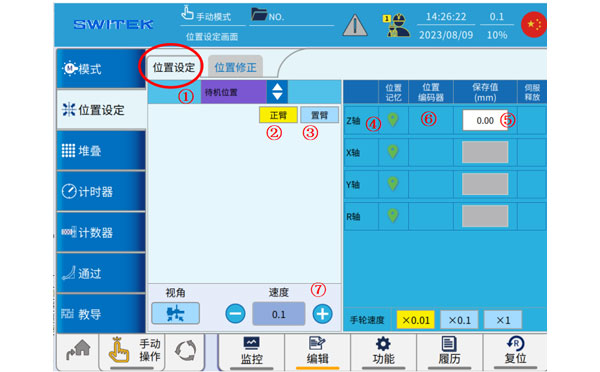
| No | Name | Function |
|---|---|---|
| (1) | Position selection | Click to select the point you want to set. |
| (2) | Main-arm selection | Click to switch to the two axes of the main arm, and cooperate with the button (7) to move the axis. |
| (3) | Sub-arm selection | Click to switch to the two axes of the jig, and cooperate with the button (7) to move the shaft. |
| (4) | Current position memory | Click the icon to set the current position of the axis to the point (after returning to the original point). |
| (5) | Point set point | (1) select the point and set the value. Click to make a changes. |
| (6) | Current axis position | The current position of the axis is displayed. |
| (7) | Manual speed setting | Manual speed setting |
Steps to set the point:
Position corrections
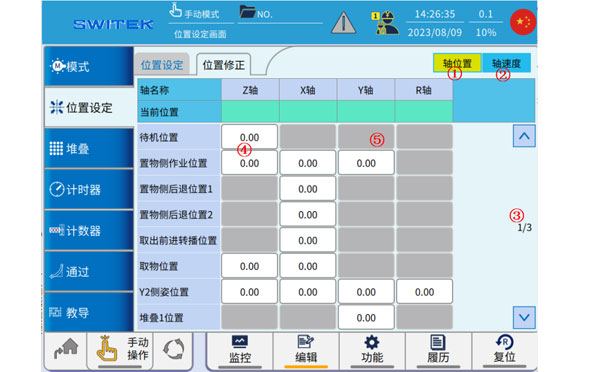
| No | Name | Function |
|---|---|---|
| (1) | Axis position | Automatically click to switch to the axis position modification |
| (2) | Axis Speed | Automatically click to switch to the axis speed modification |
| (3) | Page | Flip up and down to switch points |
| (4) | Position (Modifiable) | The white point can be clicked automatically for fine-tuning. |
| (5) | Position (not modifiable) | Gray point, cannot be modified |
This page is mainly used for an overview of the points set by the location, and when it is automatic, you can click on the point at (4) to fine-tune it.


Contact SWITEK IML
sales06@switek.biz
+86 186 5927 5869

DongGuan, GuangDong, China
HuangYanZheng©Copy Right